


Last updated: October 28, 2026
Quick Answer: in a typical company, the fastest way to find unused SaaS licenses across your company is to compare three lists for each app—vendor seat reports, identity-provider accounts, and business ownership—and then review candidates before reclaiming them. This cleanup job helps license admins, app admins, and department managers cut waste without breaking access for people who still need the tool.
Key Takeaways
- An unused SaaS license is a paid seat with no recent business use, no current owner, or no approved assignment behind it.
- Find unused seats by comparing the app report, identity-provider list, and owner list.
- 30, 60, and 90 days are common review windows, depending on the app.
- Map ownership before reclamation so a seat is not removed without an accountable business owner.
What counts as an unused SaaS license across your company?
An unused SaaS license across your company is a paid seat with no recent business use, no current owner, or no approved assignment behind it. That sounds simple until the data starts disagreeing, which it often does.
A seat can look unused for at least three different reasons:
- The person left the company, but the account stayed active.
- The person is still employed, but the app is assigned and never opened.
- The account belongs to a team mailbox, service account, or shared login that nobody owns cleanly.
The key is to separate “inactive” from “unneeded.” A license may be assigned to an employee who opens the app once a quarter. That seat is not waste if the tool is part of a monthly close, quarterly review, or a project cycle. A license may also be technically active while the person has not signed in for 60 or 90 days. That is a better reclamation candidate, but only after checking whether the app sends value outside login history.
Unused seat work across your company sits between IT and operations. Identity providers such as Microsoft Entra ID, Okta, or Google Workspace show who still has an account. App admins show whether the vendor thinks the seat is assigned. Department managers know whether the person still needs access to finish work. If those three views do not match, that mismatch is the story.
The mistake is to treat every dormant account as dead weight. Because login logs do not always reflect real work, consult your internal owners or a qualified professional before reclaiming borderline seats. Some apps log usage only when a user takes a specific action, not when they merely read data. A reporting dashboard, for example, may show little or no activity even when it is still necessary. That is why a clean unused-seat program starts with definitions, not with deletions. For IT guidance on access and lifecycle control, see Microsoft’s identity documentation and NIST SP 800-53 on account management. Microsoft Entra ID and NIST SP 800-53.
Gather the three lists that expose waste
You find unused SaaS licenses across your company by comparing a seat report, an identity-provider list, and an owner list for each app. The goal is a single inventory that shows who has access, who uses it, and who is responsible for the decision.
Start with the software you already have. For each app, pull the current seat report from the vendor admin console, export the user list from the identity provider, and ask the business owner for the people or teams that should still have access. The seat report tells you what the vendor is billing for. The identity provider tells you who can still sign in. The owner list tells you who can explain why a seat exists.
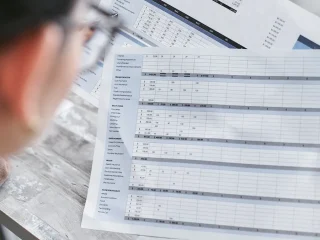
Use one row per person, app, and license type. A basic audit sheet needs at least these columns:
- employee name
- email or account ID
- app name
- license type or plan
- assigned date
- last login date
- last meaningful use date, if the app exposes it
- manager or department owner
- status: keep, review, or reclaim
If an app has group-based assignment, note the group name too. Many companies discover waste in one 25-seat team bundle because a stale group keeps assigning access long after the project ended. That is a different problem from a single stranded seat, and it needs a different fix.
The inventory step matters because seat reports alone can lie by omission. An app admin may see 100 assigned seats, but some may belong to disabled users in the directory. The identity provider may show 80 active users, but some may still be listed because offboarding lagged. A department manager may insist the app is essential, yet cannot name a current owner. The overlap among all three lists is where the cleanup work becomes trustworthy.
If the company runs dozens of tools, begin with the 10 to 20 highest-cost or highest-seat apps, not the whole stack. A manual inventory across every product can turn into a quarter-long project. A narrow audit still finds real waste and gives the process a repeatable shape.
For a broader framework on buying, renewal, and governance, the SaaS buying decisions hub is the right next stop after this cleanup work. The software licensing management guide can also help you set a repeatable inventory process, and the identity governance and administration overview is useful when ownership is unclear. SaaS buying decisions hub software licensing management guide identity governance and administration overview
How do you identify unused SaaS licenses across your company?
You identify unused SaaS licenses across your company by flagging seats with no login activity for a chosen window, then confirming that the account is not a service account, a seasonal role, or a workflow exception. The window should fit the tool, but 30, 60, and 90 days are the usual thresholds people compare.
The easiest method is a rules-based pass:
- Export the seat report from the app admin console. Use the vendor’s user or billing screen and capture every assigned seat, not just active subscribers. The result is the full pool you may reclaim.
- Export last-login data from the identity provider. Pull the same users from Microsoft Entra ID, Okta, Google Workspace, or your directory of record. The result is a second view of actual access history.
- Choose a usage threshold per app. Set 30 days for daily-work tools, 60 days for mixed-use tools, and 90 days for infrequent-reference tools. The result is a clear rule instead of guesswork.
- Sort by last activity, then compare against business role. Filter out executives, finance-close users, project roles, and shared accounts that naturally sit idle for stretches. The result is a shorter review list.
- Mark candidates for human review, not deletion. Send the list to the manager or app owner with a simple question: does this person still need the seat? The result is a decision trail.
- Recheck anything ambiguous inside the app. Some products expose feature-level activity, such as report generation or document edits, which is more useful than sign-in alone. The result is fewer false positives.
Usage thresholds are a tool, not a verdict. A seat with no login in 45 days may be dead in one product and perfectly fine in another. A CRM admin screen, for example, may see use whenever a rep logs in daily, while a compliance archive tool may only need quarterly access. The threshold should match the workflow, not the calendar.
This step is where many cleanup projects go wrong. Teams either set the bar too low and revoke active seats, or set it too high and leave obvious waste untouched. A 30-day rule for a weekly planning tool is too aggressive. A 180-day rule for a daily collaboration app is too loose. The right threshold depends on how often the app is supposed to support real work.
For a deeper buying-side lens on where software spend hides, the broader SaaS buying decisions hub is the right next stop after this cleanup work. SaaS buying decisions hub
Map ownership before you reclaim anything
You map ownership before reclamation so no one deletes access from a tool with no accountable business owner. Without ownership, the cleanup becomes an IT fight instead of an operational decision.
The owner map should answer three questions for every app:
- Who pays for it or approves the budget?
- Who decides whether a seat should stay assigned?
- Who can confirm a user no longer needs access?
Those answers are not always the same person. In a 500-person company, IT may administer the directory, procurement may handle the vendor record, and a department head may own the actual business need. When those roles blur, seats stay assigned because nobody wants to be the one who pulls the plug. If that structure is unclear in your organization, consult your internal legal, finance, or IT governance lead before changing access.
A useful ownership map names one app admin and one business owner. The app admin handles the console, provisioning, and deprovisioning. The business owner validates whether the seat serves current work. If the app touches regulated data, add a third reviewer from security or compliance. That extra step is not bureaucracy for its own sake. It is there because a wrong removal can break access to records, audit trails, or signed workflows. For governance guidance, see NIST and Microsoft documentation on access control and account management. NIST SP 800-53 Microsoft Entra ID
Use a simple review cycle:
- App admin prepares the candidate list.
- Department manager confirms whether each person still needs the seat.
- Identity provider admin disables access or removes the group assignment.
- App admin confirms the license is freed in the vendor console.
If the app supports automatic deprovisioning through SCIM, use it where possible. SCIM reduces manual drift between the identity provider and the software vendor. The trade-off is that automation can also push the wrong change faster than a person can catch it. A bad group rule can remove access from 20 people at once. That is why the first round should be small and supervised. See the SCIM standard and Microsoft’s deprovisioning guidance for implementation detail. SCIM protocol Microsoft Entra provisioning
Ownership mapping also helps with one recurring problem: “orphaned” seats after reorganizations. A team changes names, people move departments, and a tool keeps sitting in the old cost center. The license still exists, but no one feels responsible for it. A named owner closes that gap.
Reclaim the seat without breaking work
You reclaim the seat by disabling access in the identity provider first, then removing the license in the app console, and only after that confirming the user still has the data they need. That order prevents half-finished offboarding and keeps the vendor record aligned with the directory.
A safe reclamation sequence looks like this:
- Confirm the final approval. Get a written yes from the manager or app owner for each seat on the reclaim list. The result is a record you can audit later.
- Check for tied data or owned assets. Look for documents, dashboards, tasks, or shared folders attached to the account. The result is fewer lost files.
- Disable access in the identity provider. Remove the user from the license group or suspend the account in the directory. The result is that sign-in stops at the source.
- Remove the assigned seat in the vendor admin console. Free the license so it returns to the pool or lowers the billable count, depending on the product. The result is actual spend reduction.
- Reassign owned content if needed. Transfer dashboards, form ownership, or admin roles to a current employee. The result is continuity for the team.
- Log the change and date. Note who approved it and when the seat was reclaimed. The result is a clean audit trail for the next review.
Do not skip the content-transfer step. A reclaimed seat is cheap only if the work tied to it survives the cleanup. In practice, many unused-license projects expose hidden ownership problems: a manager wants a seat removed, then discovers a critical report lives in that account. That is not a reason to keep the seat forever. It is a reason to move the asset first.
The cost of doing reclamation badly is not just a lost login. It can be broken workflows, angry users, and extra reactivation work for IT. A staged revocation with a short grace period is often safer for ambiguous cases. For high-risk apps, a 7-day warning is often safer than a same-day cutover. For low-risk tools, same-day removal may be fine. For offboarding controls and lifecycle management, see Microsoft’s guidance and NIST account-management controls. Microsoft Entra ID NIST SP 800-53
Common mistakes that waste seats again
The most common mistake is relying on login alone and ignoring role, group, and shared-account use. A person who logs in once a month may still need the tool for billing, audit, or support work. A shared mailbox or team account may also hide several valid users behind one seat. The cost is false reclamation. The fix is to check the workflow, not just the timestamp.
A second mistake is using one threshold for every app. A 30-day inactivity rule works poorly across a mix of daily collaboration tools, quarterly reporting systems, and infrequent reference apps. The cost is noisy reviews and unnecessary escalations. The fix is to set thresholds by app class. Collaboration tools need tighter review. Archive or compliance tools need looser review.
A third mistake is skipping department managers and trying to settle everything inside IT. That turns the process into a ticket queue. The cost is delay, and delay keeps waste alive. The fix is to make managers validate the business need once per review cycle.
A fourth mistake is reclaiming the seat but leaving the license group intact. That seat comes right back the next time the directory sync runs. The cost is a “fix” that does not stick. The fix is to verify both the identity-provider side and the app-admin side.
A fifth mistake is waiting for renewal season to do the work. That compresses the audit into a deadline and hides the real operating problem. A monthly or quarterly seat audit is steadier. Even a 45-minute review every month is enough to keep stale licenses from piling up.
Keep the cleanup alive with a monthly seat audit
A monthly seat audit keeps unused SaaS licenses from creeping back in between renewals. The simplest version is a 30-minute review per high-spend app and a 60-minute review for the rest of the stack.
The audit rhythm can be very plain:
- Day 1: export updated seat reports from the top apps.
- Day 2: compare them with identity-provider accounts.
- Day 3: send the review list to department managers.
- Day 4: reclaim approved seats and update the inventory.
That cycle works because it makes waste visible before it grows into a budget problem. A person who leaves in January should not sit on five paid seats until September. A project team that ends in March should not keep a bundle alive through summer because nobody checked the group rule.
Keep two metrics in the audit file: assigned seats and reviewed seats. You do not need a fancy dashboard to start. A spreadsheet with dates, owners, and status is enough. If the company later wants to automate the process, the audit history becomes the training data for better rules.
The strongest version of the process ties seat recovery to the offboarding checklist and the app provisioning workflow. When someone changes roles or leaves, the directory update should trigger a review of every assigned license. That link between HR events, identity provider, and app admin is where the biggest waste usually hides.
Unused seats are easiest to find when the process is boring, regular, and owned by named people. That is the point. Not a dramatic one-time cleanup, but a small recurring habit that keeps software spend honest.
How do you identify unused SaaS licenses across your company?
You identify them by matching seat reports to login history and then checking whether the seat still has a business owner. A 30-, 60-, or 90-day inactivity threshold is a starting point, not a final answer. The safest method is to flag candidates, review them with managers, and remove only the seats that no one can justify.
How do you reclaim software seats?
You reclaim software seats by disabling access in the identity provider first, then removing the license in the app console, and only after that confirming the user still has the data they need.
Drafted with AI; not yet reviewed by a person.




Leave a comment